
Do new Telegram messages appear only when you open the app, with no alerts while your iPhone is locked? If your current network is causing problems with the push connection, you can try enabling SingLinkVPN Notification Proxy.
This feature requires SingLinkVPN for iOS v2.6.2 or later. Free accounts and all members can enable it, and the VPN must remain connected while you use it.
What does Notification Proxy do?
To receive remote push notifications, an iPhone needs to connect to Apple Push Notification service (APNs). Network restrictions or connection problems may delay or prevent alerts even when new messages are visible after you open Telegram. Apple's official documentation explains the network connection requirements for its push service.
SingLinkVPN Notification Proxy routes push-notification traffic through the VPN tunnel to try to improve notification delivery problems caused by the network. You can try it if you experience these problems on restricted networks, such as in mainland China. If notifications already work normally, you usually do not need to change this setting.
How to enable SingLinkVPN Notification Proxy
Update the app: Visit the SingLinkVPN iOS download page and update the app to v2.6.2 or later.
Enable the feature: Open SingLinkVPN and tap the profile icon at the bottom right. In Features (「功能」 in the screenshot), turn on Notification Proxy (「通知代理」).
Stay connected: Confirm that SingLinkVPN has connected successfully and keep it connected while using this feature.
Test notifications: Return to the Home Screen and lock your iPhone. Ask a friend to send you a new private Telegram message, then check for an alert. Make sure the test chat is not muted.
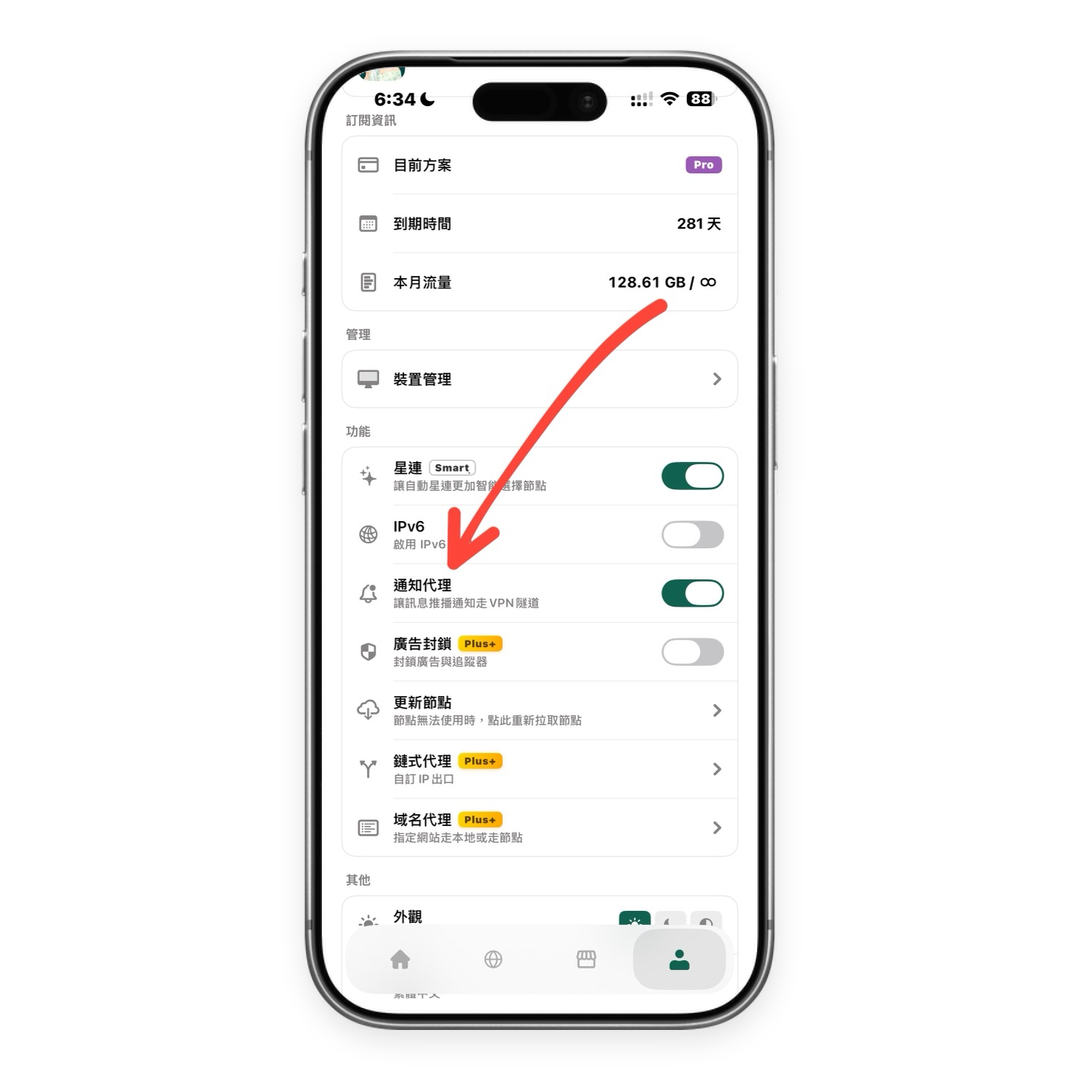
Here, v2.6.2 refers to the SingLinkVPN app version, not the iPhone's iOS operating system version.
What if Telegram notifications still do not arrive?
System permissions: Go to Settings → Notifications → Telegram and turn on Allow Notifications. Enable Lock Screen, banners and sounds as needed.
Telegram settings: Check Notifications and Sounds, and make sure the relevant chat is not muted.
Focus modes: Check whether Do Not Disturb, Sleep or another Focus mode is limiting Telegram alerts.
VPN status: Confirm that SingLinkVPN is still connected, the server is working and your account has enough data. You can also switch between Wi-Fi and cellular data and test again.
Notification Proxy primarily addresses network connection problems. It cannot replace system notification permissions or guarantee a fix for every notification issue. For further checks, see Telegram's official notification troubleshooting guidance.
Frequently asked questions
Can free accounts use Notification Proxy?
Yes. Free accounts and all members can enable it. The SingLinkVPN iOS free plan provides 200MB of free data per day. Within your available allowance, you can connect to free servers and use Notification Proxy. Traffic from other apps routed through the VPN also uses this allowance. See the SingLinkVPN free plan guide for details.
Do I need to keep the VPN connected after enabling it?
Yes. Keep SingLinkVPN connected while using Notification Proxy.
Is this setting only needed in mainland China and Russia?
Whether you need it depends on your current network and how notifications are arriving. You can also try it in other regions if notification problems are network-related. If notifications work normally, you usually do not need to enable it. A region's name alone does not guarantee that the feature will help.
Download or update SingLinkVPN for iOS, follow the steps above to enable Notification Proxy, and test with a new message.