
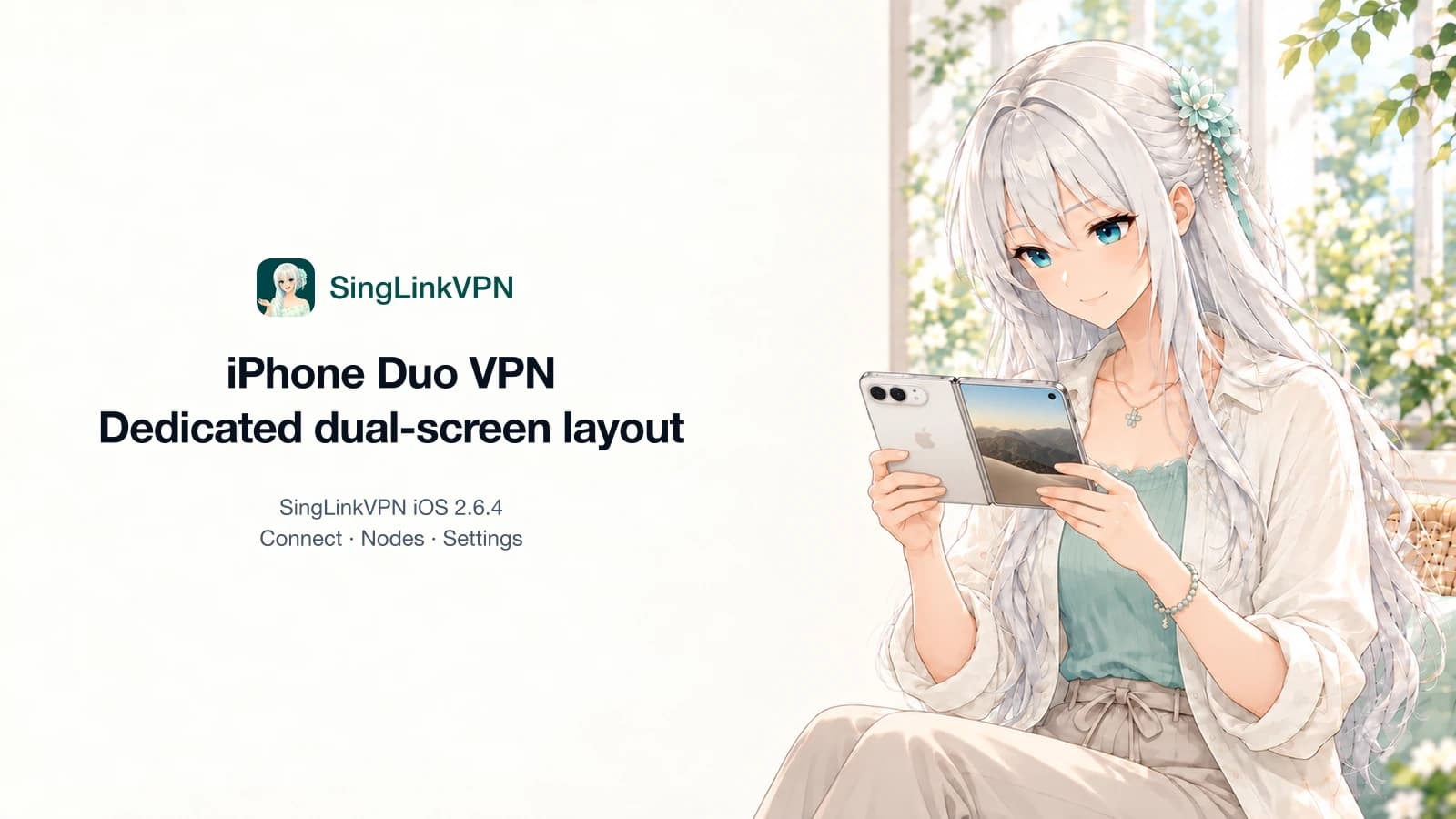
SingLinkVPN is a VPN app offering free and paid plans, with one-tap connections, smart server selection, global servers and multiple connection protocols. It also offers multi-device plans and in-app support.
On October 23, 2026, iPhone Duo went on sale, and SingLinkVPN iOS 2.6.4 was also available on the App Store. From connecting on the home screen to selecting servers, protocols, subscriptions and help, SingLinkVPN has prepared a dedicated dual-screen interface for the new device.
Your new phone has just arrived, and your everyday VPN is ready to unfold with it.
A new phone should not leave you searching for buttons
When you get an iPhone Duo, you naturally want to open your everyday apps and try them out.
But if an app has not caught up with the new screen format, it can interrupt the experience: a connection button tucked in a corner, a list using only a small area, or important controls placed near the fold. Before switching to another server, you have to work out where to tap.
SingLinkVPN made support available on launch day. After installing or updating the app, users can access a layout designed for iPhone Duo, with familiar features placed where they suit this screen.
Connections, server selection and settings each have their place
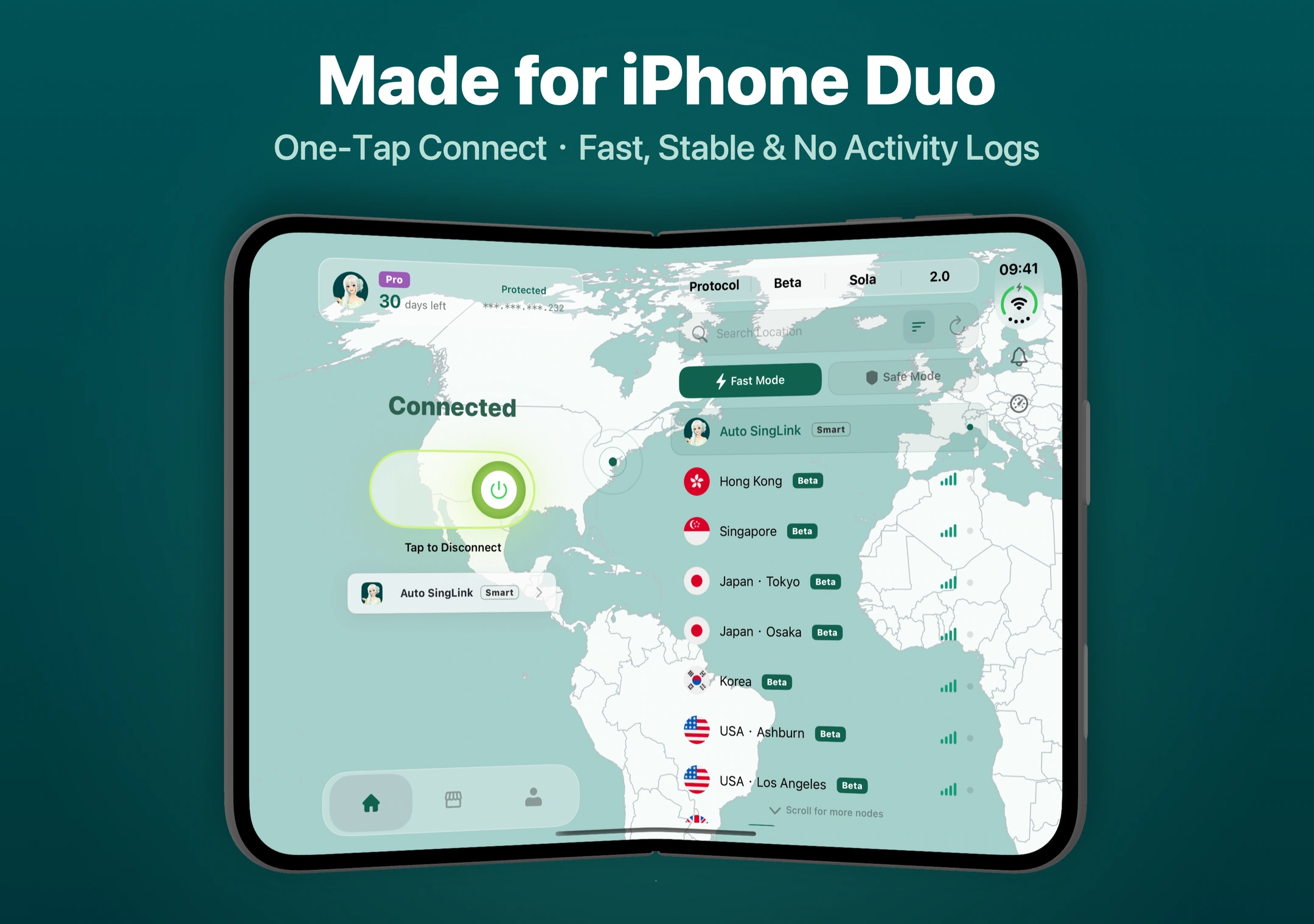
Open SingLinkVPN and a world map fills the background, while translucent panels hold account information, servers and common actions. The unfolded screen gives different tasks their own space, keeping information and controls in a clear hierarchy.
Check your connection on the left; make your selections on the right.
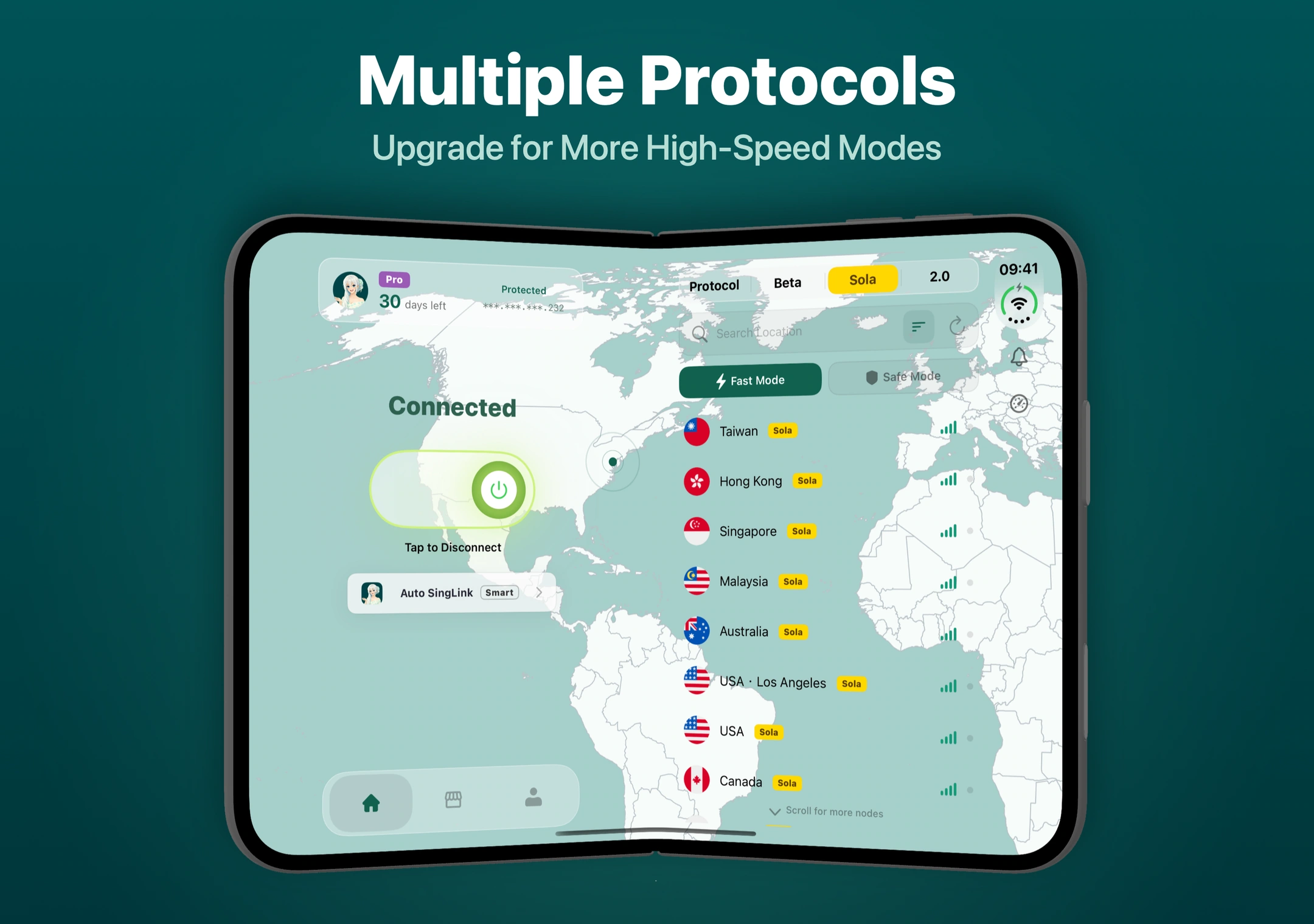
The left side brings together connection status, the connection button and the current route. The right side opens the server list, with location search, sorting and refresh controls. To check whether you are connected, look left. To switch servers, browse and select on the right.
Protocol and mode controls sit beside the server list so you can check the current configuration. If you prefer not to choose a route manually, use Auto SingLink Smart. If you need a particular connection region, you can select a server yourself.
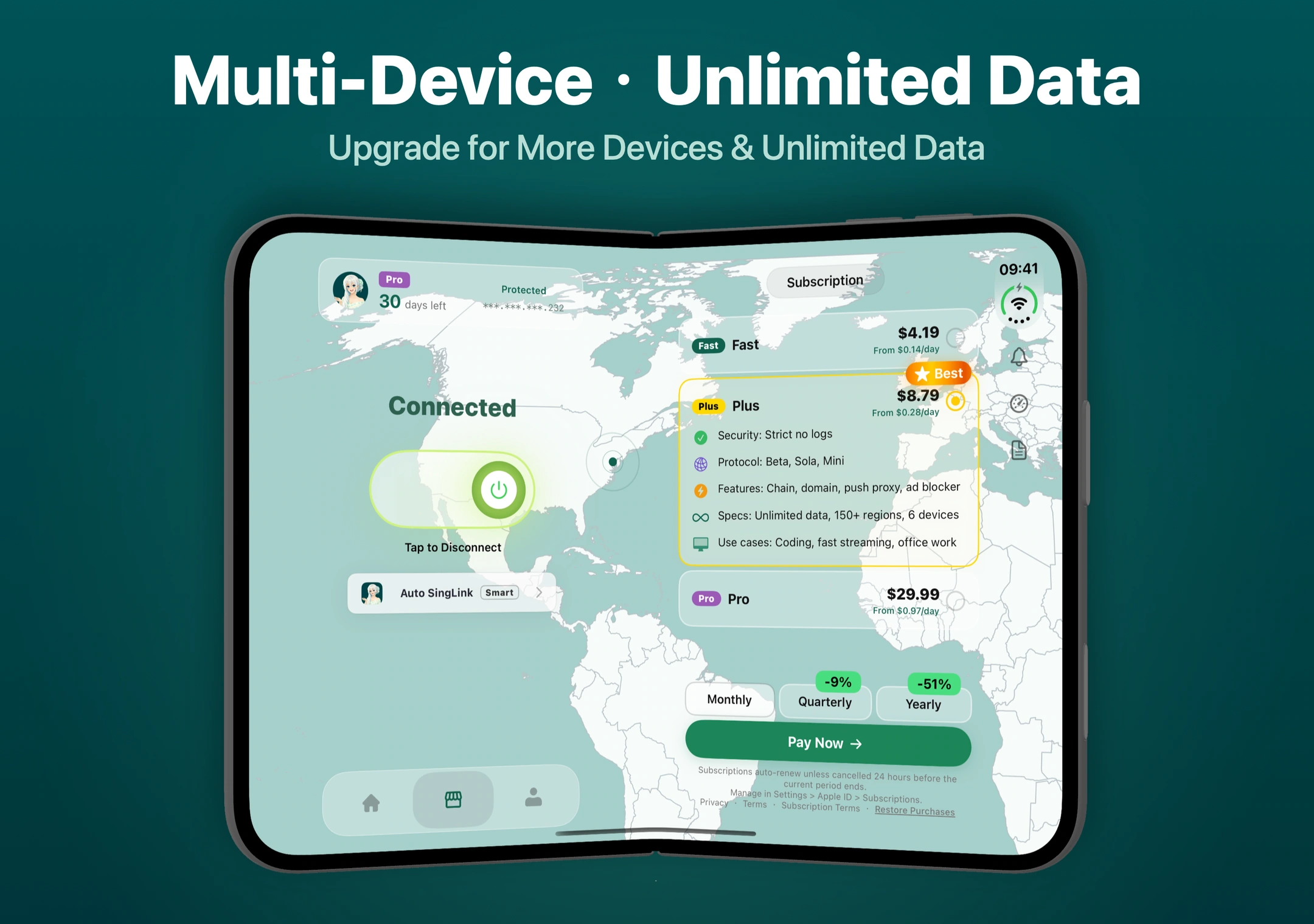
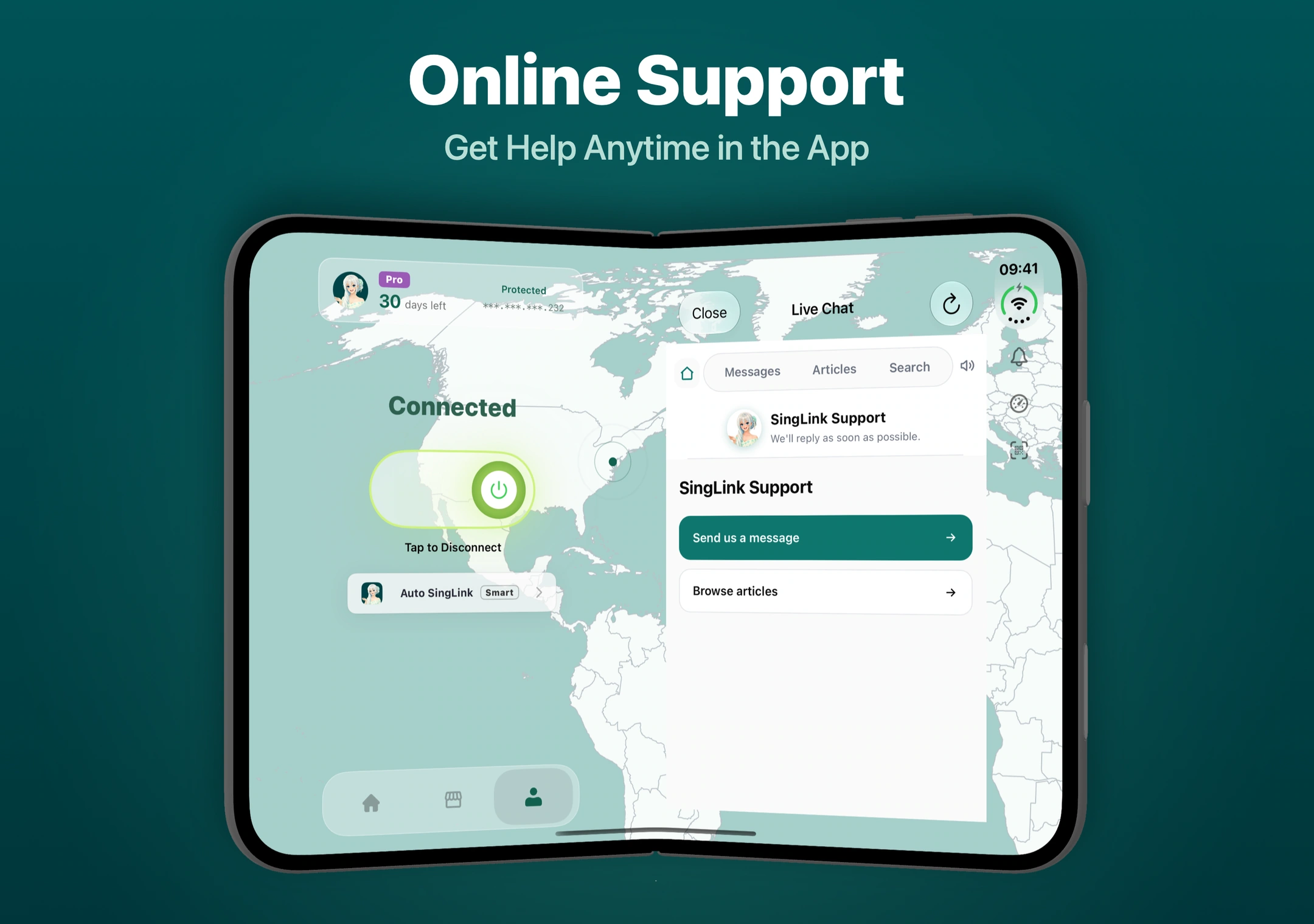
The same design extends to subscriptions and support. Content on the right changes with the current task, while the connection area on the left stays in view. Choosing a route, comparing plans and finding help all follow the same interface logic.
Animated button feedback, connection status changes and panel transitions are also arranged around these actions, helping users understand what they tapped and the current state of the app.
This is the dual-screen interaction SingLinkVPN designed specifically for iPhone Duo: keeping the familiar way to connect while making use of the unfolded screen, so checking information, choosing a route and adjusting settings flow naturally together.
Choosing free servers, protocols and plans
An interface that is comfortable to use should also make its connection options easy to understand.
Start with a free server if you want to try it first
SingLinkVPN offers 10 randomly selected free servers, identified by a Free label in the list. The basic iOS free-plan allowance is 200MB per day, suitable for testing your network, browsing text-based pages or connecting for a short time.
Images, videos, file uploads and traffic from other apps routed through the VPN all use this allowance. Before a longer session, check your remaining data and decide whether you need to upgrade.
Learn about the SingLinkVPN free plan
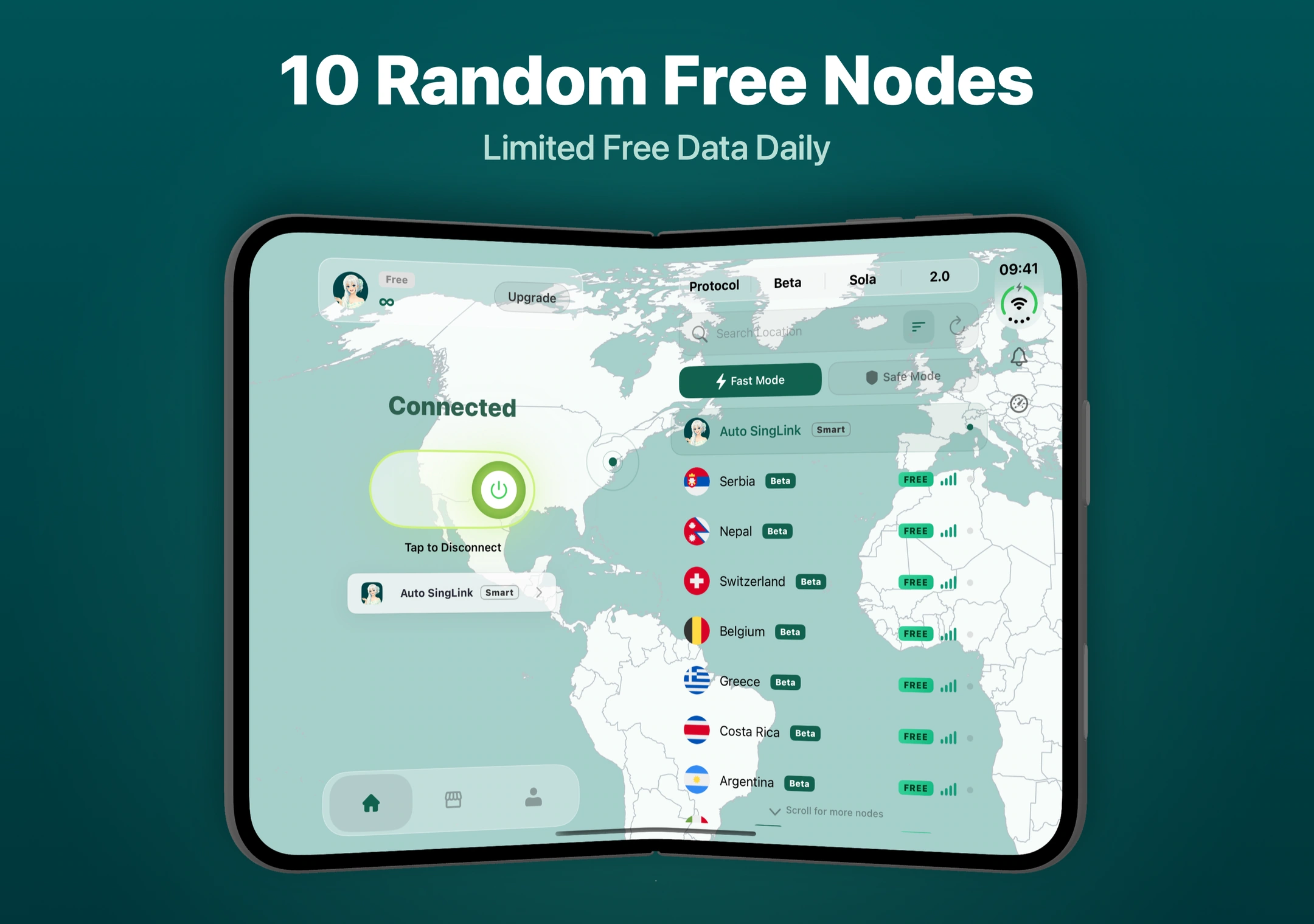
Choose a global server yourself for a region you use regularly
If you often use a route in a particular region, you can find it directly in the server list. The upgrade benefits shown here include more than 100 global servers, with the exact availability depending on your plan.
Selecting servers yourself lets you test them with the sites and work tools you use on your current network, then keep the options that suit you. Server counts and signal indicators can be useful references, but actual performance still needs to be assessed on your current network.
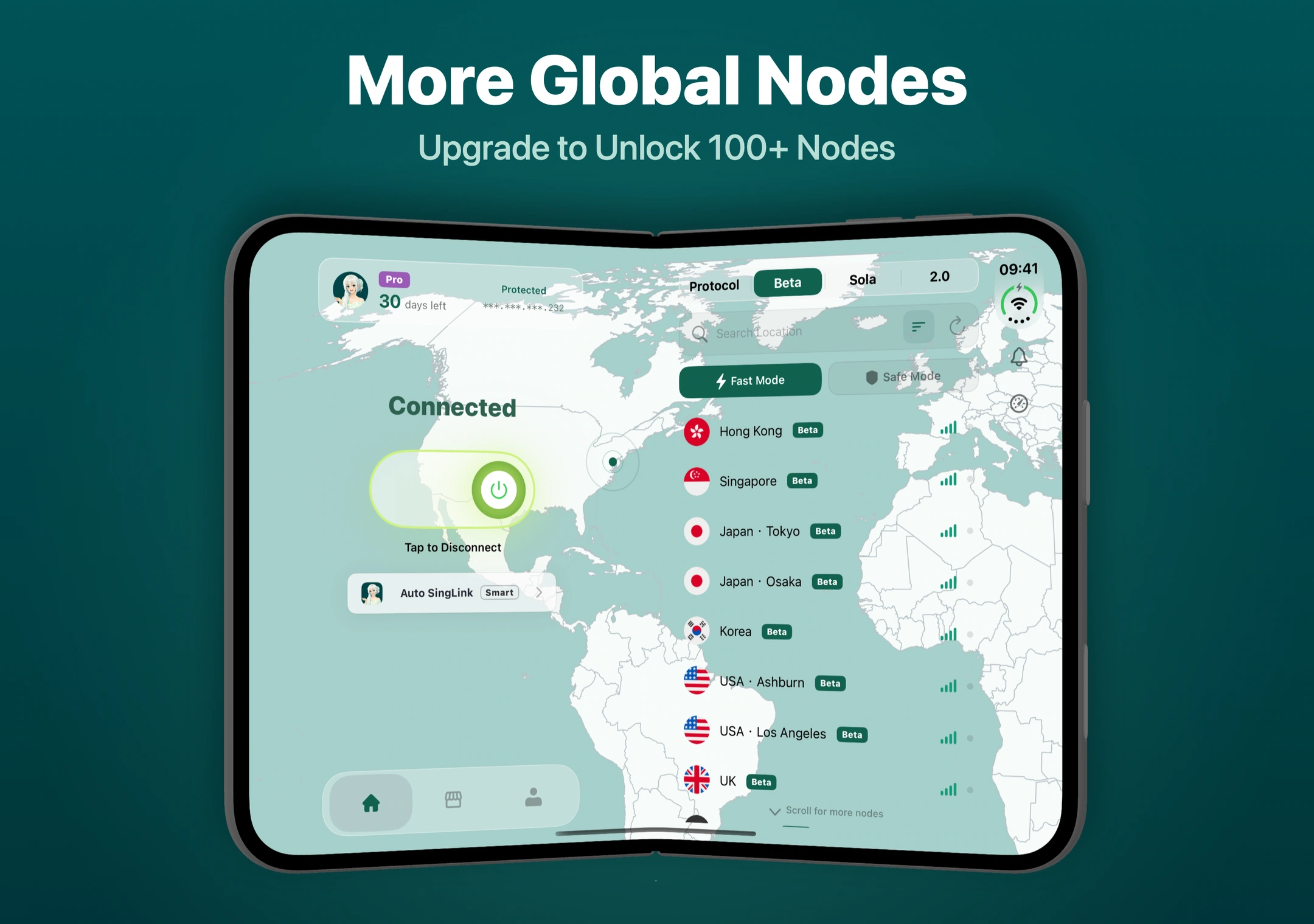
Check the available protocols when adjusting your connection
The home screen provides protocol options including Beta, Sola and 2.0, with availability determined by your account plan. When you select a protocol, its corresponding server list appears in the same area, making your current connection configuration easier to understand.
Most users can begin with smart connection or the default configuration. If the connection is not working well, try other available servers or protocols and compare the actual results.
Compare paid plans for longer use or multiple devices
The app offers plans such as Fast, Plus and Pro, with access to more servers, protocols, unlimited data and multi-device benefits according to the plan.
Start with how you normally use the service:
If you often research information or use work tools, focus on the servers you use regularly and your connection needs.
If you often watch videos or transfer files, focus on the data allowance and benefits.
If you need your phone and computer connected at the same time, check the number of devices allowed.
The plan page offers different billing periods. Prices and specific benefits are those displayed when you make your purchase.
For privacy, SingLinkVPN's privacy policy states that it does not maintain user activity logs, and separately explains how it handles account information, orders, issue reports and other information.
Getting started for the first time
Download or update. Go to the App Store through the official iOS download page and install SingLinkVPN iOS 2.6.4 or later.
Sign in or register. Follow the app's prompts to access your account and check the servers and features currently available to you.
Choose a route. Free users can select servers marked Free. Users with a plan can choose from the servers available to them, or use Auto SingLink.
Tap Connect. On first use, follow the system prompt to authorize the VPN configuration. After connecting, check that the home screen shows Connected.
Here, 2.6.4 is the SingLinkVPN app version, not the iPhone's iOS operating system version. The official app developer is SingLink LLC, which you can verify on the App Store page.
Find help inside the app when you need it
You can get help in the app with choosing servers, checking which protocols your account supports, or troubleshooting a tool that still will not open after connecting.
SingLinkVPN includes online support with Contact Us, Browse Help Documentation and search options. You can look up the relevant instructions first, or tell support about your current network, selected server and specific issue to reduce repeated guessing and trial and error.
Take your time exploring what iPhone Duo can do. SingLinkVPN has already arranged connections, server selection, subscriptions and help within this dedicated interface. Start with a free server, try your everyday sites and tools, then choose a plan that suits you.